How to Enable Two-Factor Authentication (2FA) for my.iacbox and iacbox.cloud
Two-factor authentication (2FA) adds an extra layer of security to your password and protects your IACBOX account with a one-time security code from your authenticator app.
In this guide, we show you step by step how to enable 2FA for your IACBOX account.
Step 1: Sign in to the portal
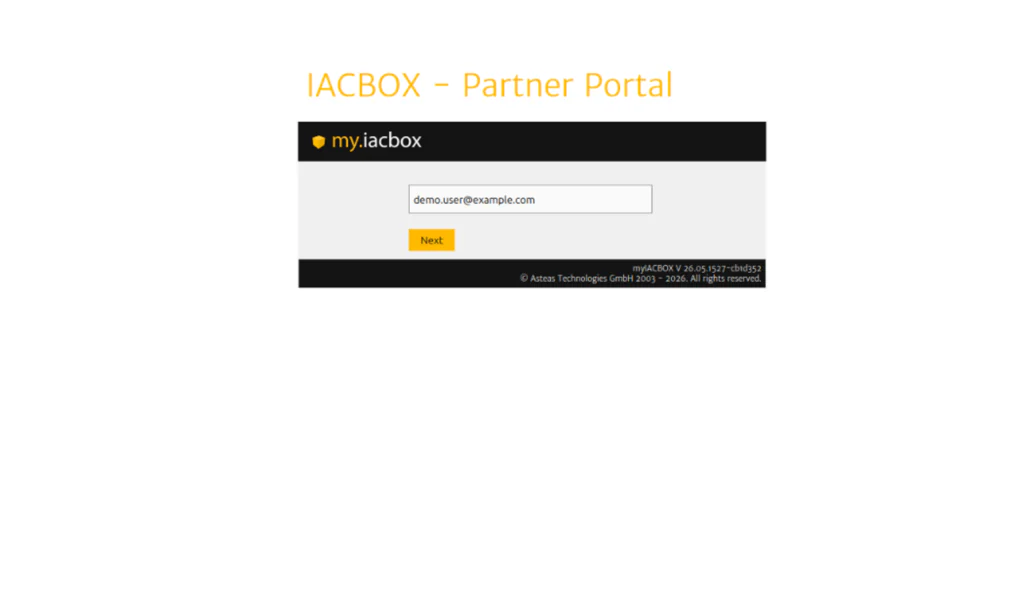
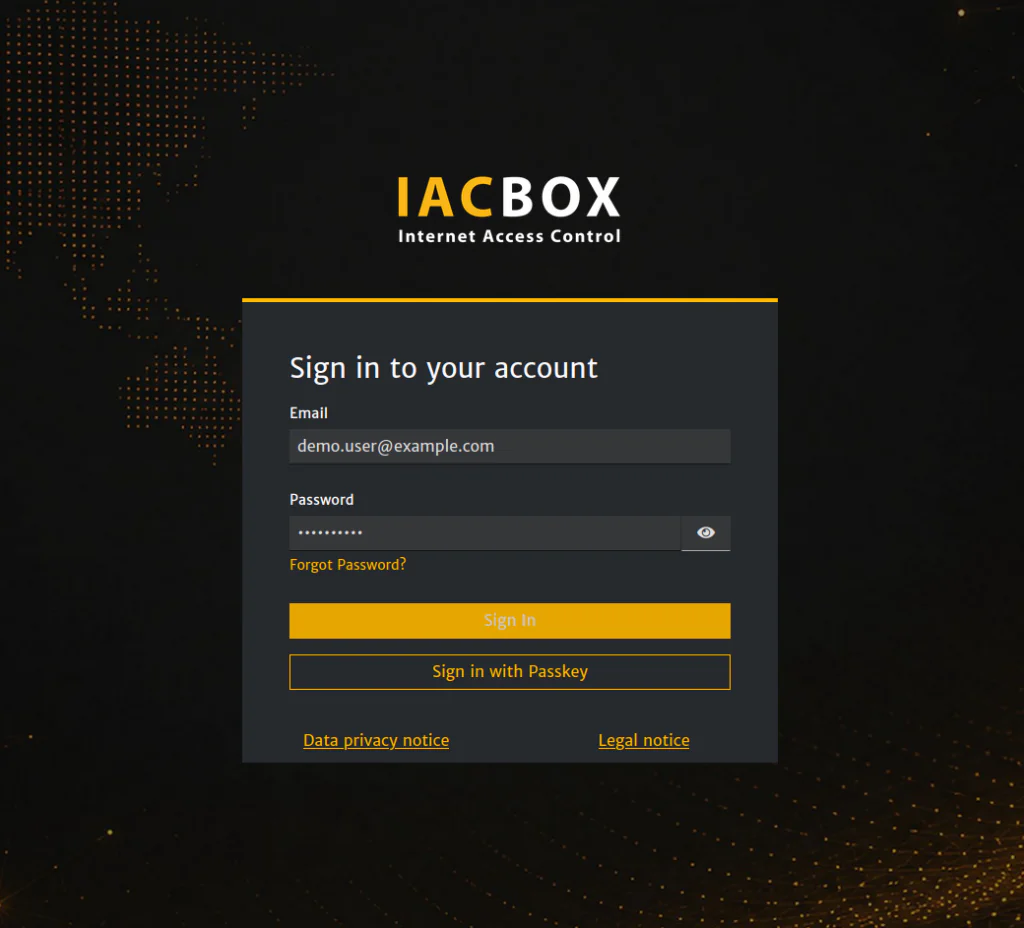
Open the IACBOX Partner Portal and sign in with your login credentials.
- Enter your email address and click “Next”.
- Now enter your password and click “Sign In”.
If you have forgotten your password, instructions for resetting it can be found further below.
Step 2: Enable Two-Factor Authentication
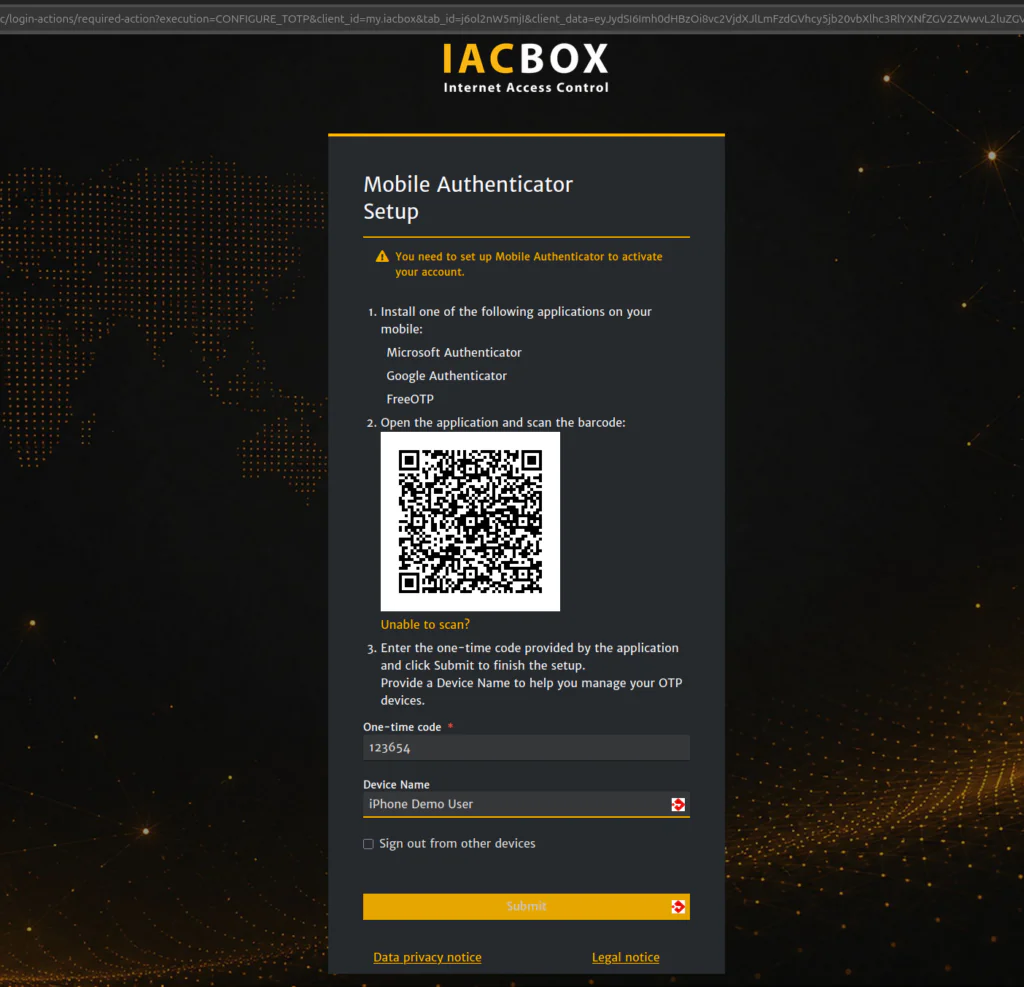
Setting up two-factor authentication is required and starts automatically during your initial login. One of the supported authenticator apps is required:
- Microsoft Authenticator
- Google Authenticator
- FreeOTP
- Scan the QR code with your authenticator app.
- Enter the security code.
- Confirm the setup.
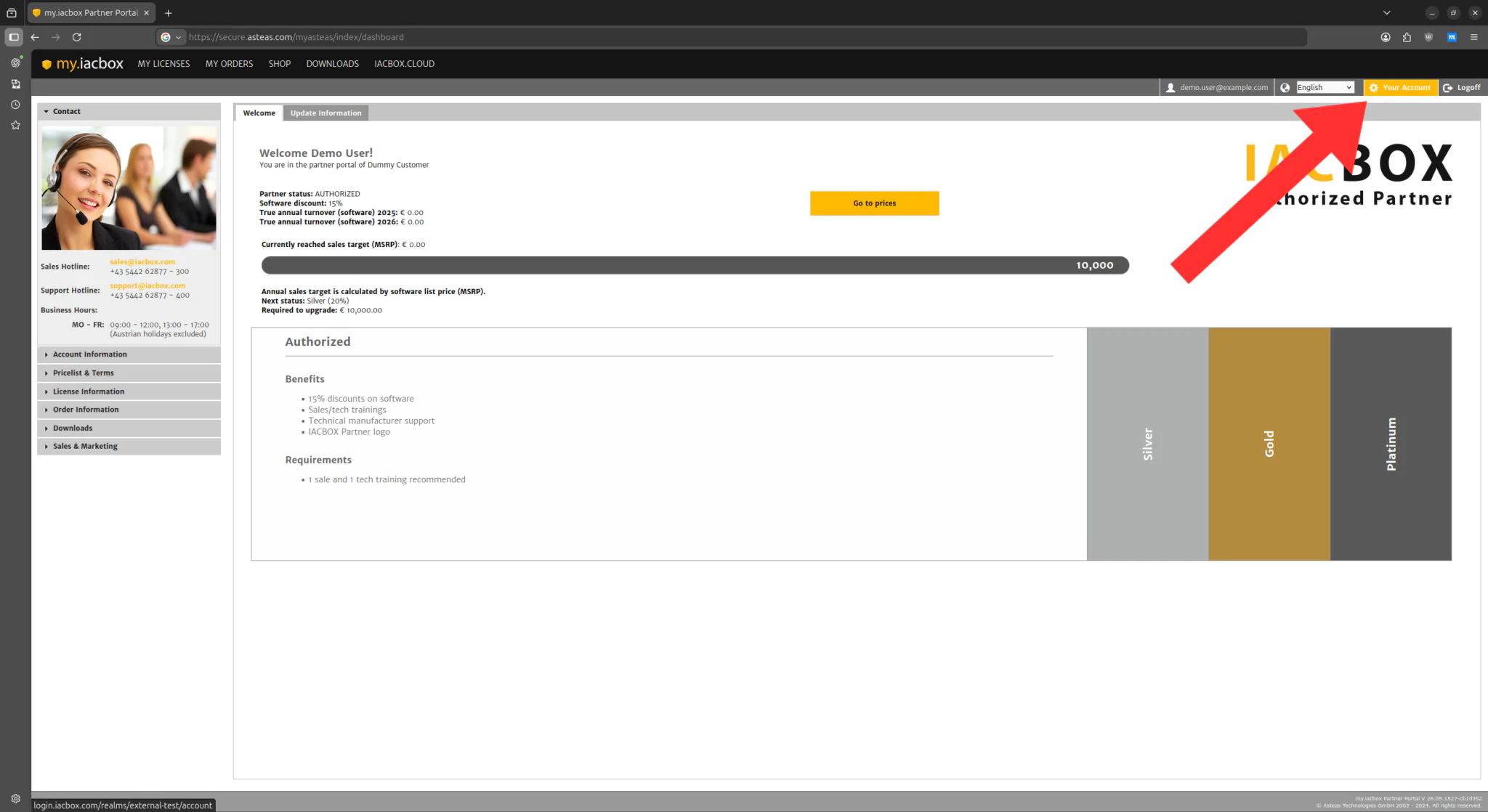
Two-factor authentication has been successfully enabled, and you are now signed in to the Partner Portal.
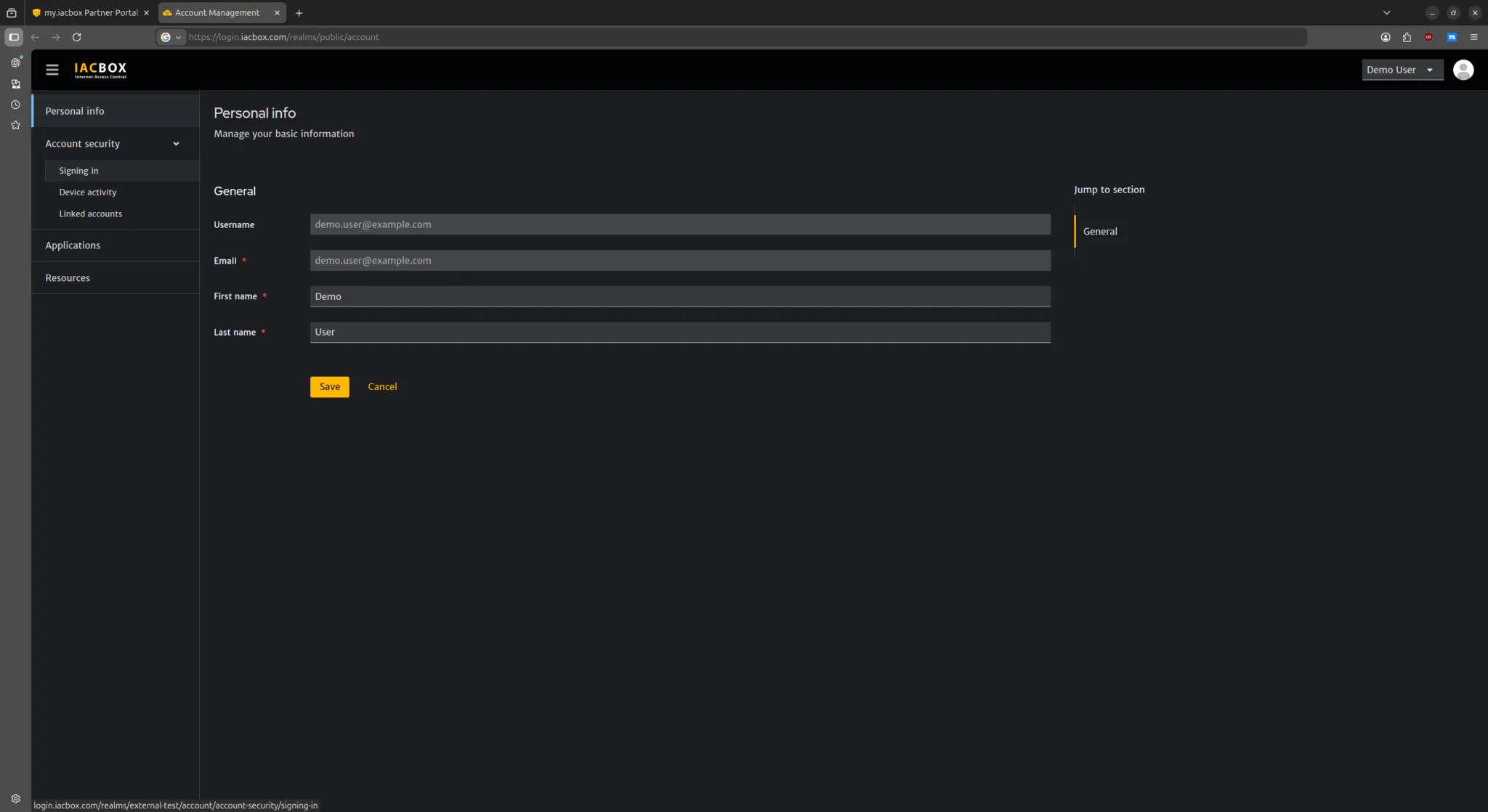
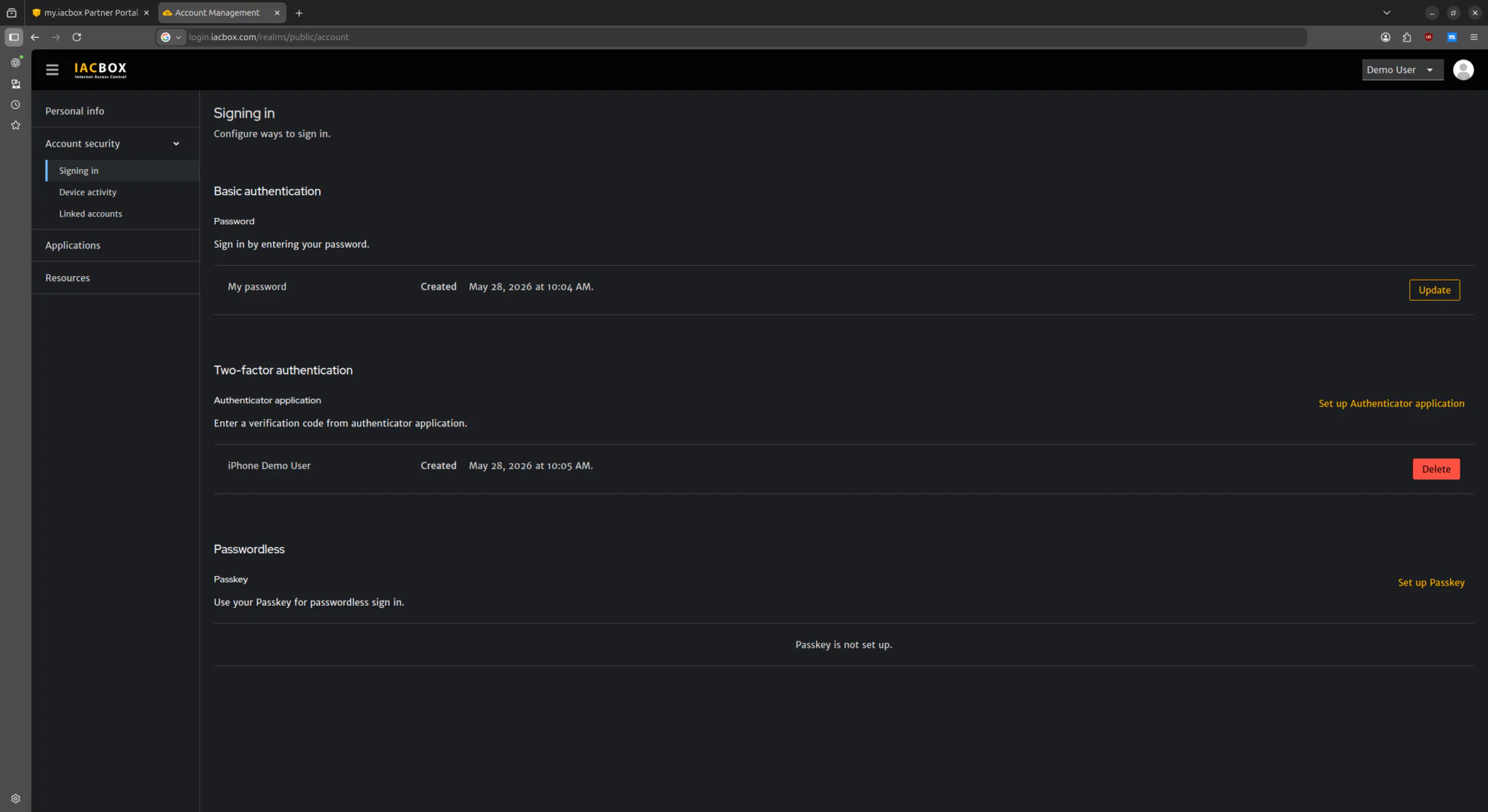
Manage account settings
If you want to manage or update your settings at a later time, click “Your Account” in the Partner Portal. There you can edit the following settings:
- Manage your 2FA settings
- Review devices
- Adjust security settings
Additional Notes
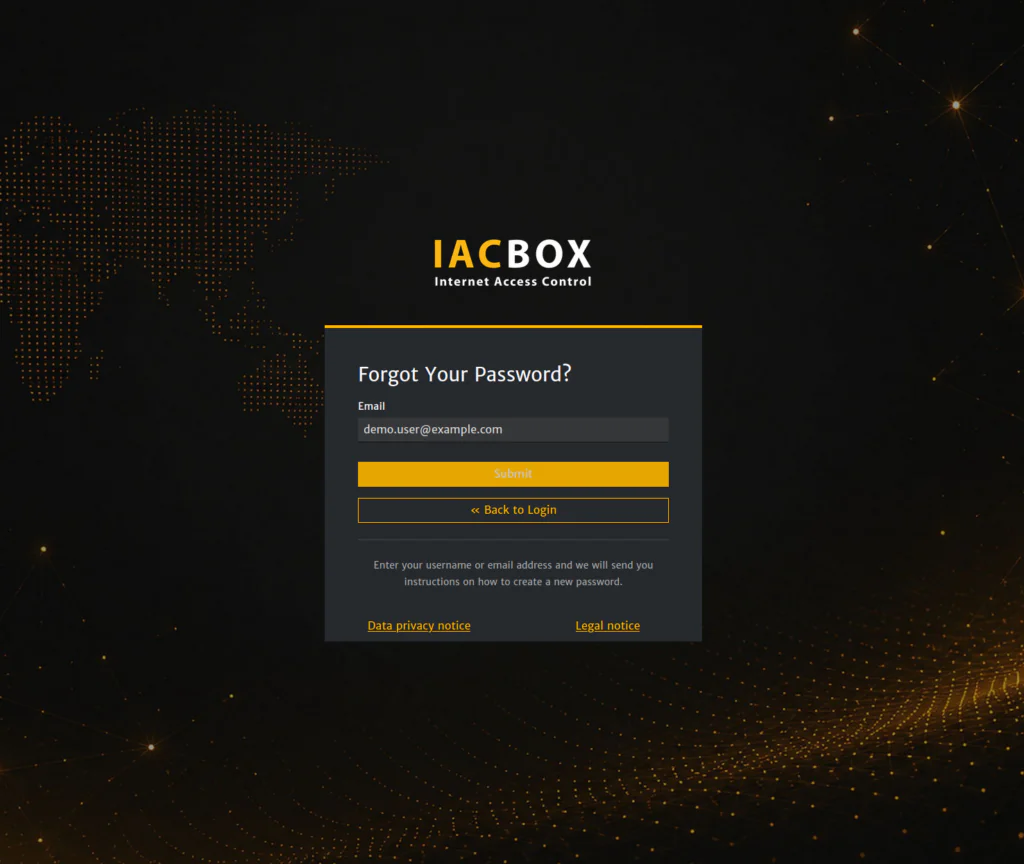
Reset password
- Click “Forgot Password”.
- Enter your email address.
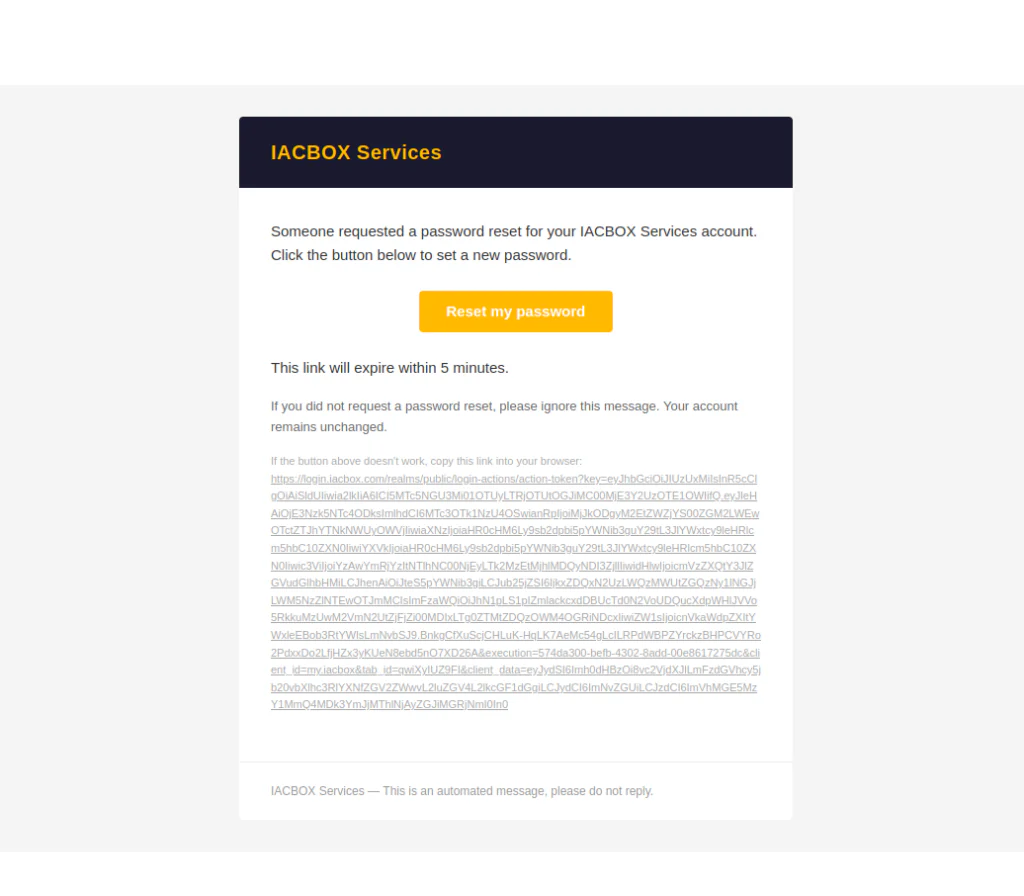
- Open the password reset email.
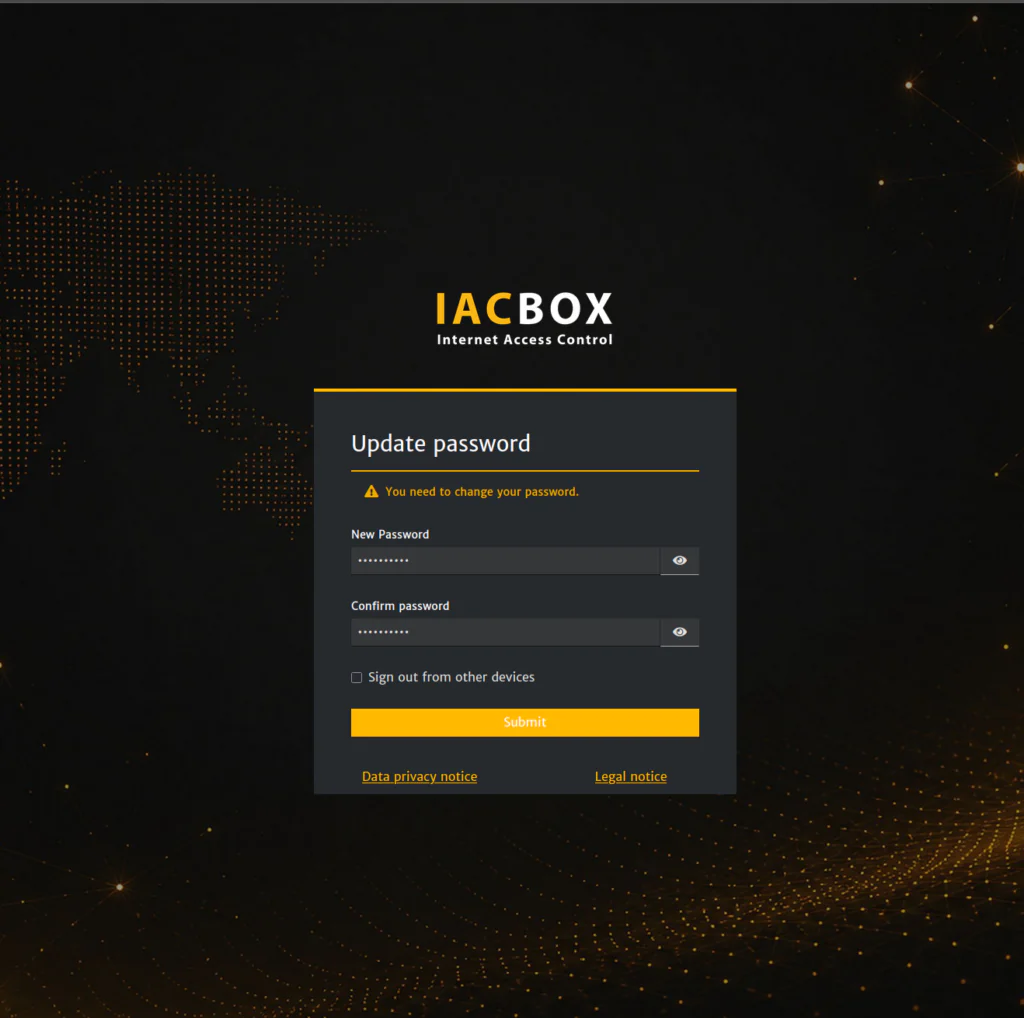
- Set a new password.
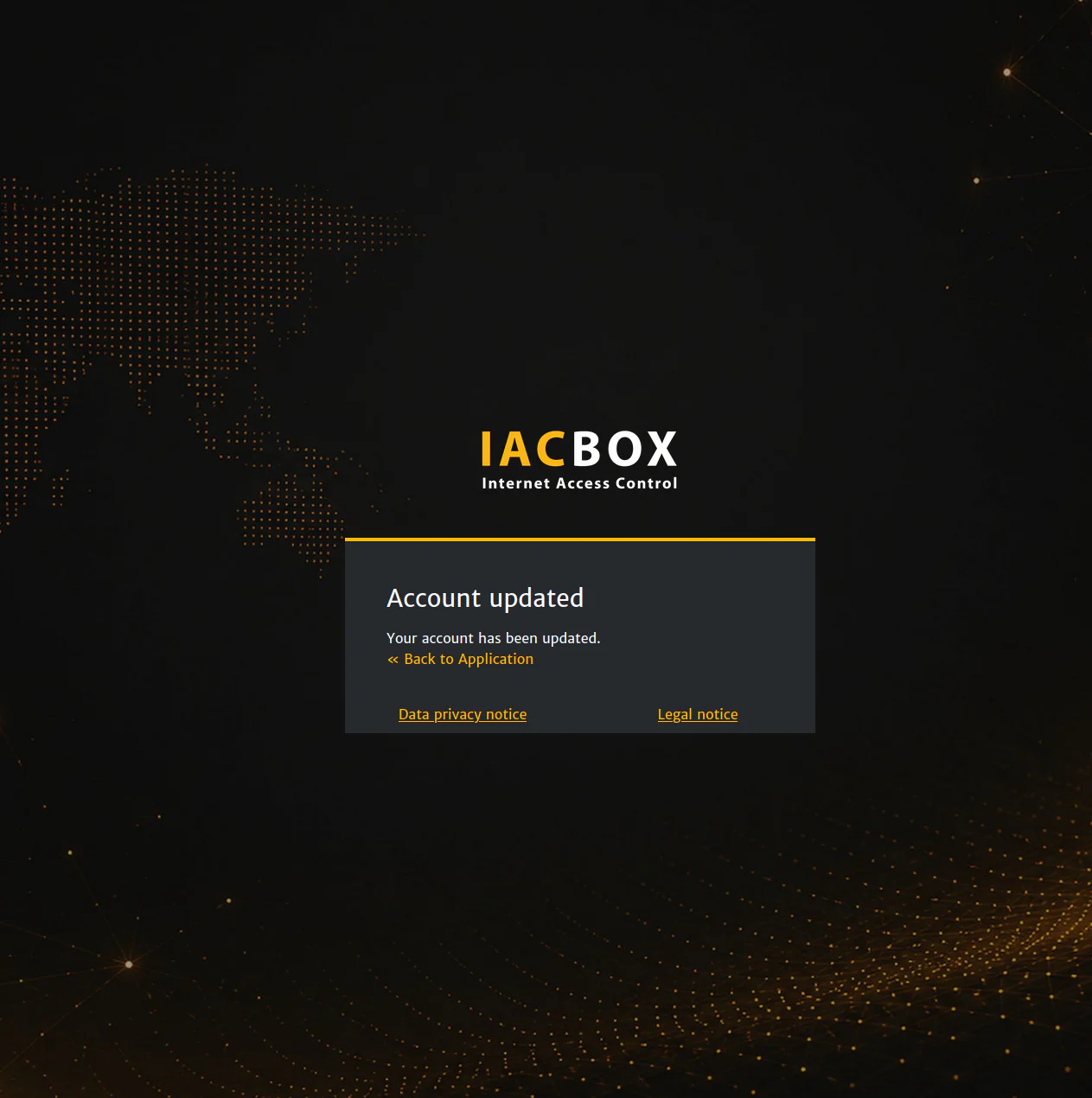
- Confirm the process.
What happens if you switch devices?
When you switch smartphones, the authenticator app must be reconnected to your account.
What to do if a device is lost?
If you lose your device, please contact your administrator or IACBOX Support.